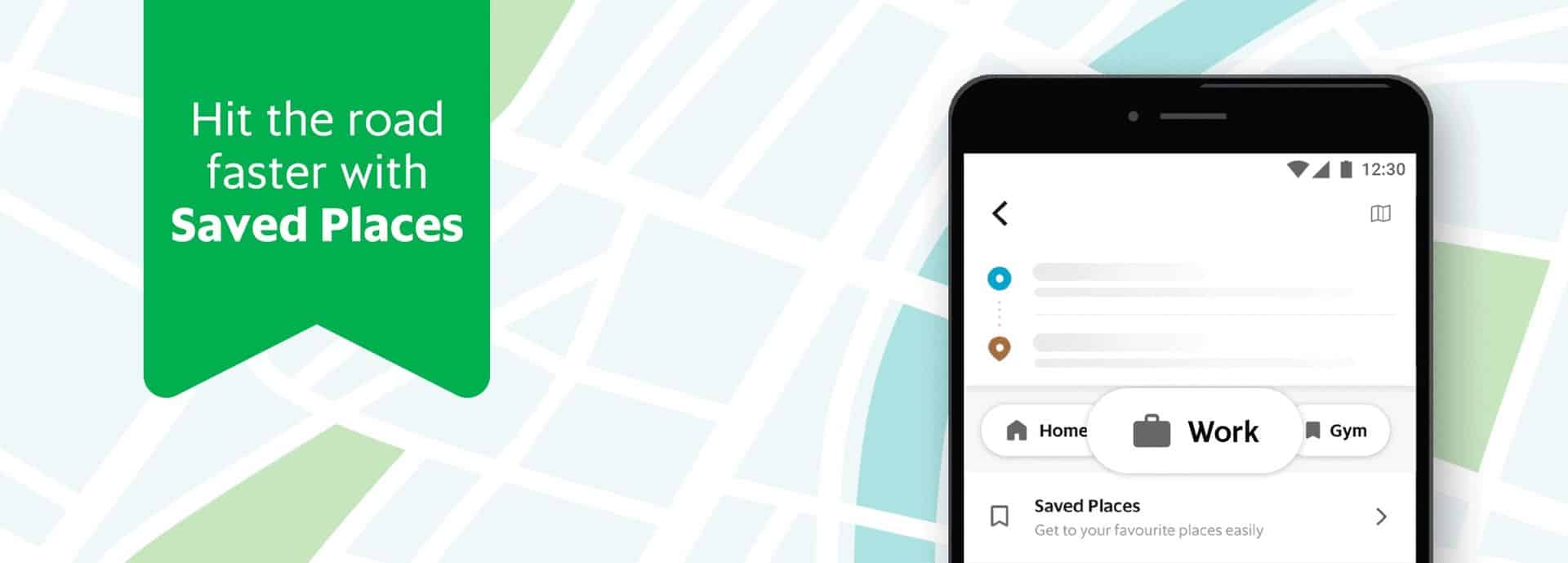
Save your favourite destinations as shortcuts in your Grab app
Booking a Grab ride to your office, your best friend’s apartment, the gym or home is now so much easier and faster. Just add them to your Saved Places and you’ll be one tap away from where you need to be. Once you saved a place, the option will be available as a shortcut every time you book a ride.
Ready to give it a try?
If you haven’t made the leap to v5.24 yet, update your Grab app here.
Set your favourite destinations as shortcuts in just a few taps
Start by saving your home and work address
-
Step 1
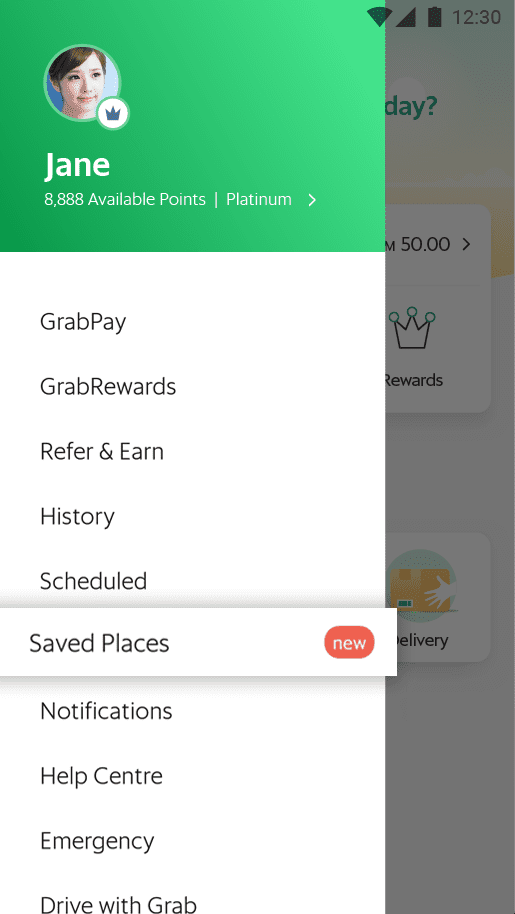
In your Grab app menu, tap on ‘Saved Places’.
-
Step 2
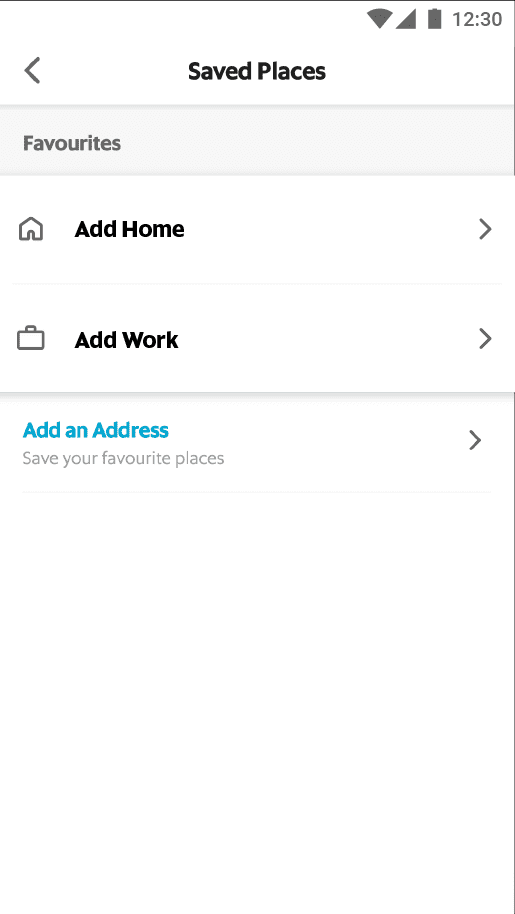
Tap ‘Home’ or ‘Work’.
-
Step 3
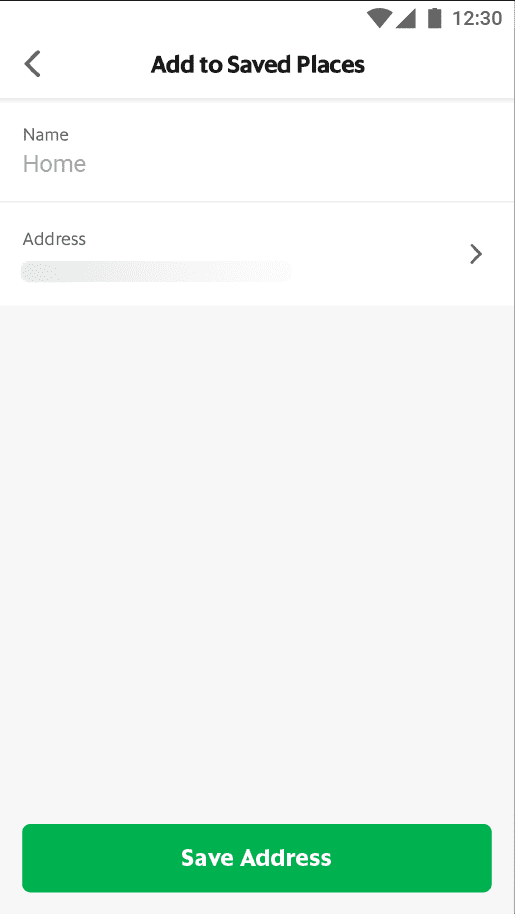
Key in your home or work address and tap ‘Save Address’.
-
Step 4
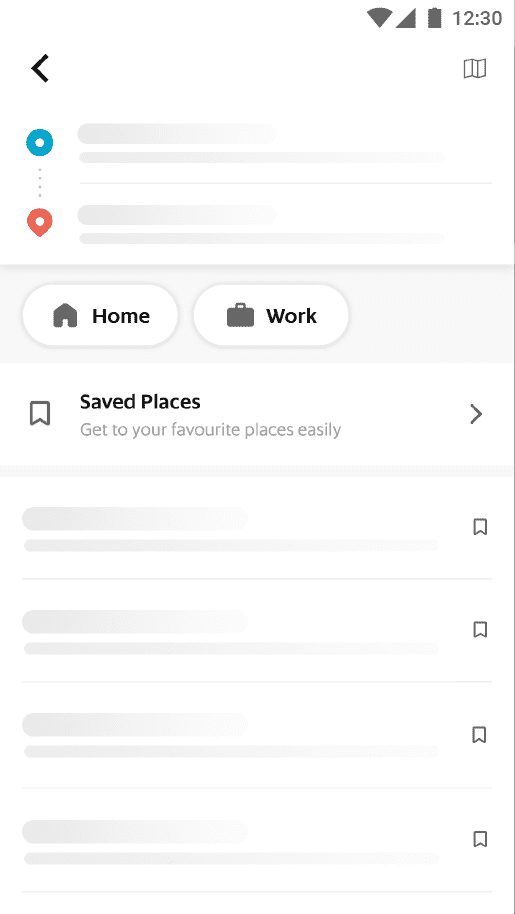
The addresses will appear as a shortcut every time you book a ride.
Add a shortcut to all your favourite places
so you can quickly find them later
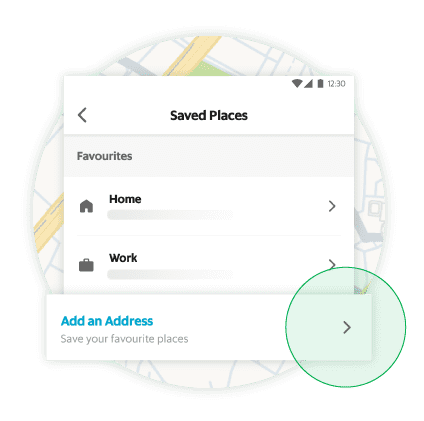
Step 1
Go to your Saved Places and tap ‘Add an Address’.
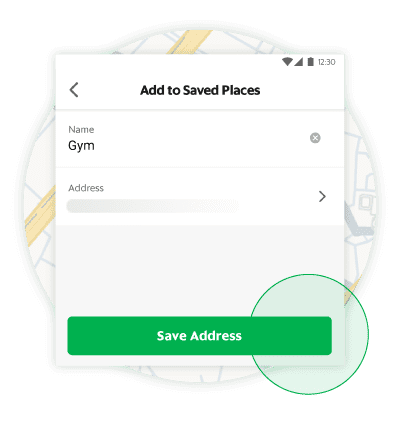
Step 2
Key in the address, name it, and tap ‘Save Address’.
Frequently asked questions
What is ‘Saved Places’?
Saved Places is a new way to save your frequently used pickup and dropoff addresses all at one place. You can label an address as “Home”, “Work”, etc. so it’s easier and faster to select when you’re booking a ride.
Where did my ‘Favourites’ go?
No need to worry, all your favourites (Yellow Star icons) have been converted into Saved Places (Grey bookmark icons). You can see them by going to ‘Saved Places’ section in the app from the Sidebar Menu.
How can I set an address as ‘Home’ or ‘Work’?
Just open Saved Places section from the Sidebar menu, click on ‘Add Home’ or ‘Add Work’ on top of the page, click on the ‘Address’ field to search for the name or address of your address that you want to save. Then select ‘Save Address’ to add the address as ‘Home’ or ‘Work.
How can I add a new address in ‘Saved Places’? / How can I set a custom label to a saved address?
Just open ‘Saved Places’ section from Sidebar menu, click on “Add an Address”, select a name of the address such as ‘Gym’, ‘Office’, etc. and then click on ‘Address’ field to search for the name or address of your address that you want to save. Then select ‘Save Address’ to add the address under custom label.
How can I edit an address in ‘Saved Places’?
Go to the sidebar menu and select ‘Saved Places’. Now, tap on the Grey ‘saved/bookmark’ icon in front of the address that you want to edit. On next screen, make the changes you want (either change the address or the label) and then select ‘Save Address’. Your changes will be saved.
How can I remove an address from ‘Saved Places’?
Go to the sidebar menu and select ‘Saved Places’. Now, tap on the Grey ‘saved/bookmark’ icon in front of the address that you want to remove. On the next screen, select ‘Remove’ and then confirm. You can also select the address from the search page by tapping on the filled Grey icon to remove it.
How do I search for my saved address?
To search, you can type the name of the saved place such as “Home”, “Gym”, “School”, etc and you will be able to see the result in search.
How many addresses can I save?
You can save as many as you want.
I am in Indonesia but am not able to select some of the saved addresses?
Please check if these addresses are from Indonesia or from some other country. Only the addresses which are in your current country will be available to select.
Can I delete my saved address as “Home” or “Work”?
No. You can only edit it after you have added an address to “Home” or “Work” as these are pre-defined system address names.